Option 1: your private forwarding address
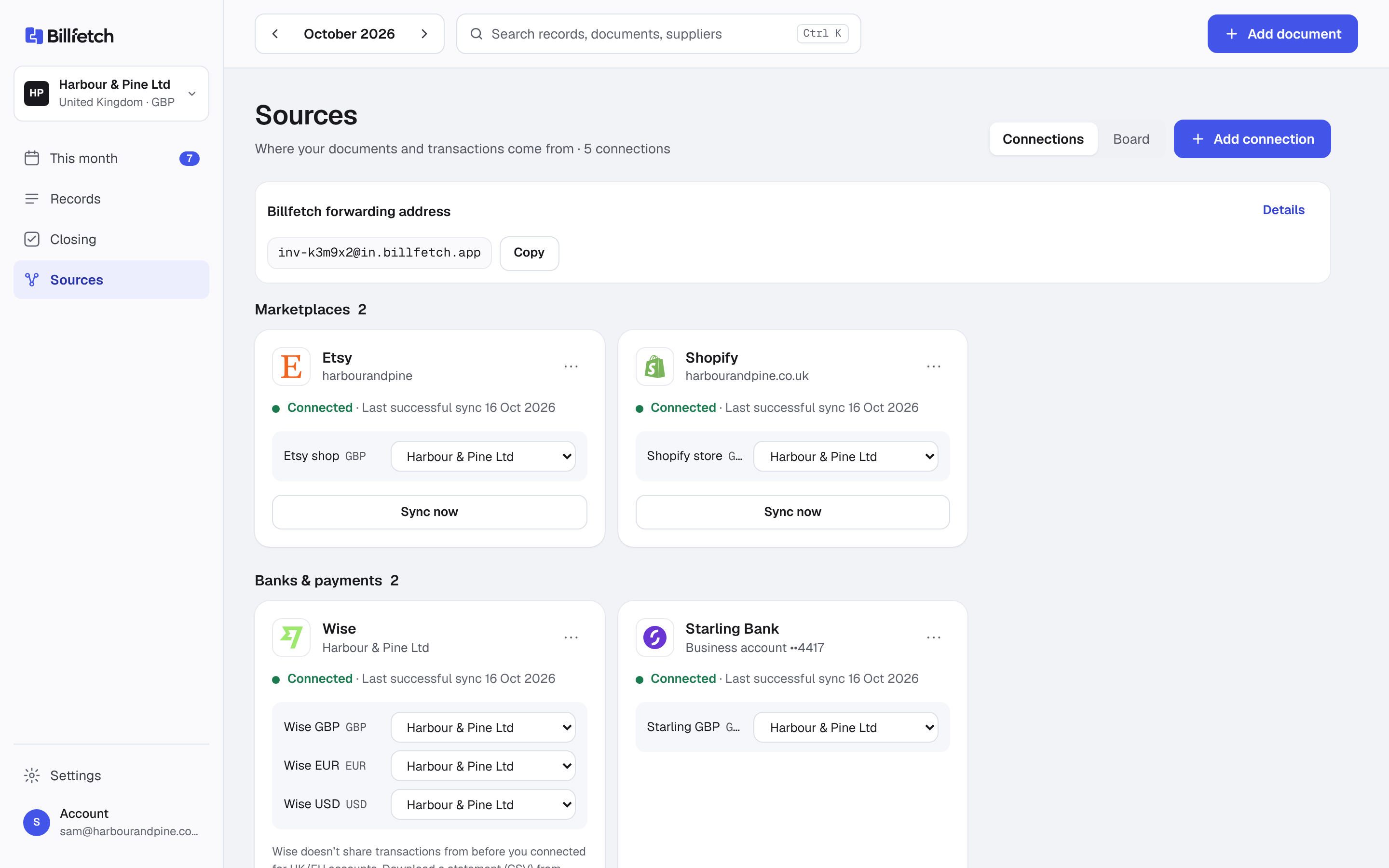
Every Billfetch account can create a private address in the form inv-…@in.billfetch.app. Anything sent to it becomes a document in Billfetch. It is the simplest route because Billfetch never touches your own mailbox. You can use it in three ways:
- Forward invoices by hand when they arrive.
- Give the address to suppliers as their billing email, so invoices go straight to Billfetch.
- Set up a rule in Gmail or Outlook that forwards invoice emails automatically.
When Gmail asks you to confirm a new forwarding address, the confirmation code appears on the forwarding address screen in Billfetch within a few minutes. The forwarding address guide has the steps for Gmail filters and Outlook rules.
Option 2: connect the mailbox
If you would rather Billfetch looked in the mailbox itself, connect it:
- Outlook.com and Microsoft 365: sign in with Microsoft and approve read access. Billfetch never sees your password.
- Gmail: connect over IMAP with a Google app password (Google requires 2-Step Verification for these).
- Fastmail, Zoho or your own domain: connect over IMAP with the server details and an app password.
You can collect history from a date you choose, so last quarter's invoices come in on day one. Step-by-step instructions are in connect Gmail or Outlook.
What Billfetch keeps — and what it leaves alone
If you want to be sure personal mail is never read, use the forwarding address or a separate mailbox that only receives invoices.
- PDF attachments are saved as documents.
- Emails without an attachment are checked first, and only those that look like invoices or receipts are saved. Some suppliers put the receipt in the email body; those are kept too.
- Everything else is left alone and is not stored.
- An optional sender filter (for example shopify.com or [email protected]) limits collection to the suppliers you name.
When collection happens
Mail sent to your forwarding address arrives on its own. A connected everyday mailbox is checked when you select Sync now on its card. A mailbox that only ever receives invoices can be marked as such; it is then checked automatically and every email in it is kept without the invoice check. That is the most hands-off setup: a dedicated invoices@ mailbox, or a Gmail filter forwarding into your Billfetch address. Whichever route you choose, you can switch later without losing anything already collected.
Three setups that work well
Suppliers that only offer invoices behind a login still need a download; forward or upload those PDFs and they join the same flow.
- Suppliers email Billfetch directly: change the billing email in each supplier account to your forwarding address. Nothing reaches your inbox at all.
- A Gmail filter does the forwarding: keep receiving invoices as normal, and let a filter (for example subject: invoice OR receipt) pass them on to Billfetch.
- A dedicated invoices mailbox: point suppliers at a separate address, connect it and mark it as invoices only, so it is checked automatically.
From email to matched record
Each collected document goes through the same steps as an upload: it is read and checked, shown in This month for approval, then matched to the bank or card payment that paid it. If a supplier sends an invoice and later a receipt for the same payment, Billfetch flags the pair so the expense is not counted twice.
Safe by design
- Mailboxes are opened read-only: Billfetch never sends, deletes or moves your email.
- Duplicates are harmless: a file already in your vault is recognised and not added again.
- A daily limit on the forwarding address protects your account from spam; the screen tells you if extra emails were skipped.
- If your address leaks, create a new one. The old address stops working immediately.